




Dreamhub for ZoomInfo
Dreamhub for ZoomInfo lets your team enrich companies and people in Dreamhub with your own ZoomInfo data. Once your ZoomInfo account is connected, Dreamhub uses it as one of its enrichment sources and fills in contact and company details on your CRM records automatically — no copying data between tabs.
1. Setting Up the Integration
Prerequisites
Before connecting ZoomInfo, ensure you have:
- An active Dreamhub account with access to the Integrations page in Dreamhub settings
- A ZoomInfo account whose subscription includes API access to contact and company enrichment
- Agreement on who connects it: ZoomInfo is connected once for the whole Dreamhub account, and every enrichment in that account uses that connection
Step-by-Step Connection Process
- Log into Dreamhub at crm.dreamhub.ai.
- Open the settings (gear) icon, then click Integrations in the Admin section.
- Find the ZoomInfo card under Available and click Connect. ZoomInfo opens in a new window.
- Sign in to ZoomInfo and approve Dreamhub's request to access your ZoomInfo data.
ZoomInfo returns you to a ZoomInfo connected confirmation. Close that window and return to Dreamhub, where the ZoomInfo card now appears under Connected.
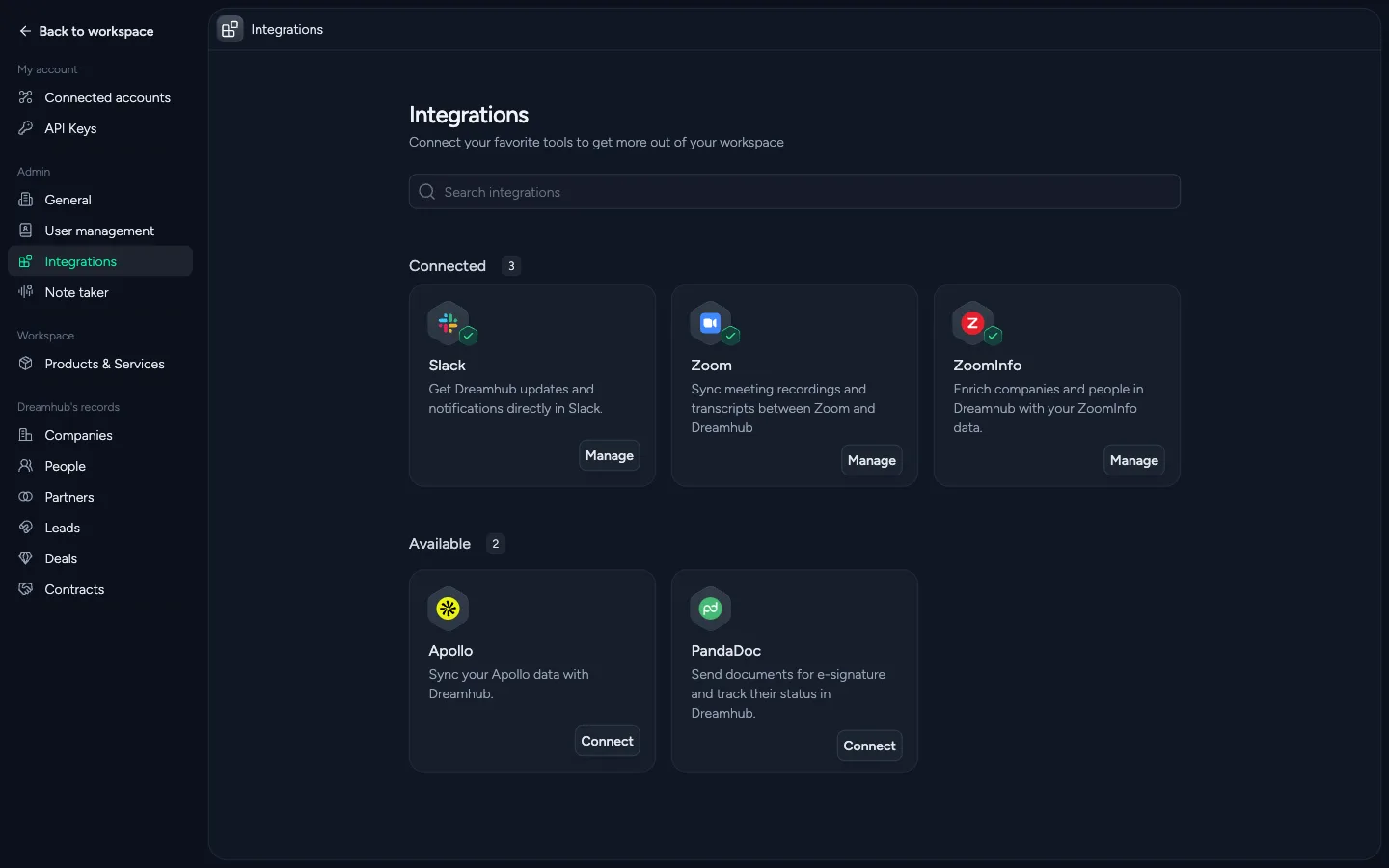
ZoomInfo listed under Connected on the Integrations page Click Manage on the ZoomInfo card to see the connection and the user who connected it.
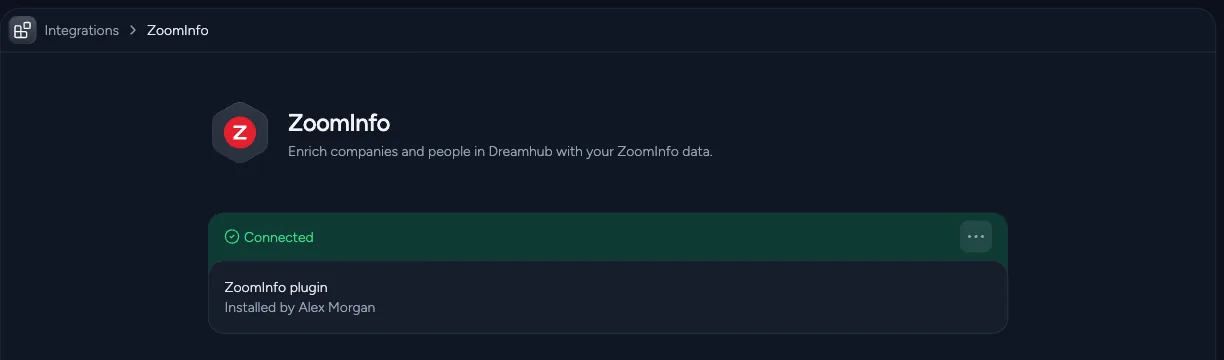
The ZoomInfo connection and the user who connected it
Troubleshooting Guide
Common Issues and Solutions:
- The ZoomInfo window does not open
- Solution: allow pop-ups for dreamhub.ai, then click Connect again
- “ZoomInfo is already connected for this account by another user”
- Solution: ZoomInfo is connected once per Dreamhub account. Open Manage on the ZoomInfo card to see who connected it, and ask that user to disconnect it first if the connection should move to you
- The connection failed or expired
- Solution: close the ZoomInfo window and start again from Integrations
- ZoomInfo still shows as Available after connecting
- Solution: refresh the Integrations page. If the card is still under Available, repeat the connection steps
- Records are not getting ZoomInfo data
- Confirm your ZoomInfo subscription includes API enrichment access and has usage remaining
- ZoomInfo only returns data for people and companies it has on file, so some records are filled from Dreamhub's other enrichment sources instead
For additional support, contact support@dreamhub.ai
2. Usage Guide
Core Features and Use Cases
Automatic Person Enrichment
Use Case:
Complete contact details on the people in your CRM with your ZoomInfo data
Prerequisites:
- ZoomInfo integration must be connected
How to Use:
- Work in Dreamhub as normal. When Dreamhub enriches a person, it looks them up in ZoomInfo along with its other enrichment sources
- Details ZoomInfo returns are added to the person, including:
- Name and email address
- Company and job title
- Direct phone number
- Street address, city, state, postal code, and country
- Open the person in Dreamhub to see the enriched details
Automatic Company Enrichment
Use Case:
Keep firmographic data on your accounts complete without manual research
Prerequisites:
- ZoomInfo integration must be connected
How to Use:
- When Dreamhub enriches a company, it looks the company up in ZoomInfo along with its other enrichment sources
- Details ZoomInfo returns are added to the company, including:
- Company name and website
- Industry and NAICS code
- Employee count
- LinkedIn page and parent company
- Phone number and address
- Open the company in Dreamhub to see the enriched details
ZoomInfo Usage
Dreamhub enriches records through your own ZoomInfo connection, so lookups count toward your ZoomInfo account's API usage under your ZoomInfo plan. Dreamhub only requests the contact and company enrichment data it needs to fill in your records.
3. Removing the Integration
If you no longer want Dreamhub to use your ZoomInfo data, you can disconnect it at any time.
- Log into Dreamhub at crm.dreamhub.ai.
- Open Integrations in settings and click Manage on the ZoomInfo card.
Open the options menu (⋯) next to Connected, click Disconnect, then confirm.
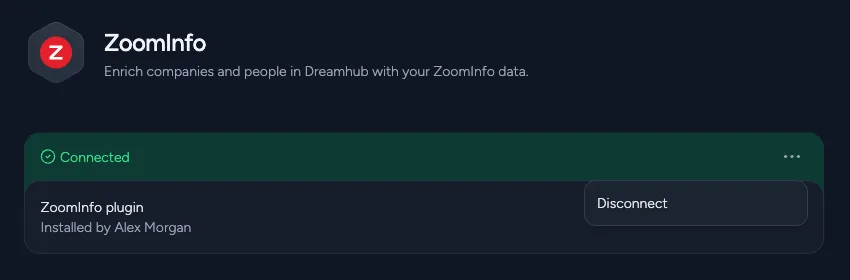
Disconnecting ZoomInfo - ZoomInfo is connected once for the whole Dreamhub account, so only the user who connected it can disconnect it. Everyone else sees the option disabled.
Implications of Deauthorization
What Happens When You Remove the Integration:
- Dreamhub stops looking up records in ZoomInfo immediately
- New enrichments continue from Dreamhub's other enrichment sources
- Details already added to your records from ZoomInfo are retained
Data Handling and Privacy
Data Retention:
- Enriched details already on your records remain in your CRM
- No new data is requested from ZoomInfo after you disconnect
- Your existing CRM records and notes are unaffected
Data Removal:
Complete data removal requires account termination as follows:
- Email privacy@dreamhub.ai with your account details
- Request "Complete Account and Data Deletion"
- All data, including details enriched from ZoomInfo, will be permanently deleted within 30 days of request
- This action is irreversible and will remove ALL your Dreamhub data, not just ZoomInfo-related information
See our Privacy Policy and Terms of Use for details.
Re-enabling the Integration
You can reconnect ZoomInfo at any time by following the connection steps in Section 1. Enrichment through ZoomInfo resumes as soon as the connection is restored.