




Dreamhub for Zoom
The Dreamhub Admin App for Zoom logs your Zoom activity in Dreamhub CRM automatically. Zoom meetings are captured with their recordings and transcripts, and Zoom Phone calls are logged as call activities on the customer record — no manual data entry, and nothing to remember after a call.
1. Setting Up the Integration
Prerequisites
Before installing the Dreamhub Zoom integration, ensure you have:
- An active Dreamhub account with appropriate permissions
- Admin permission to your Zoom account
- The same email address on both sides: each person’s Zoom email must match their Dreamhub user email. Dreamhub uses that match to attribute a meeting or a call to the right user, so a Zoom user with no matching Dreamhub user will not have their calls logged.
- For Zoom Phone call logging only: a Zoom Phone license on the users whose calls you want logged, and Zoom call recording enabled if you also want recordings and transcripts.
Step-by-Step Registration Process
- Log into Dreamhub at crm.dreamhub.ai.
- Open Connected accounts: click your account name and avatar in the top-right corner of the screen, then click Connected accounts. The settings (gear) icon takes you to the same place.
- Find the Zoom row and click Connect. Zoom opens in a new window and asks you to authorize the Dreamhub Admin App for Zoom — approve it as a Zoom account admin.
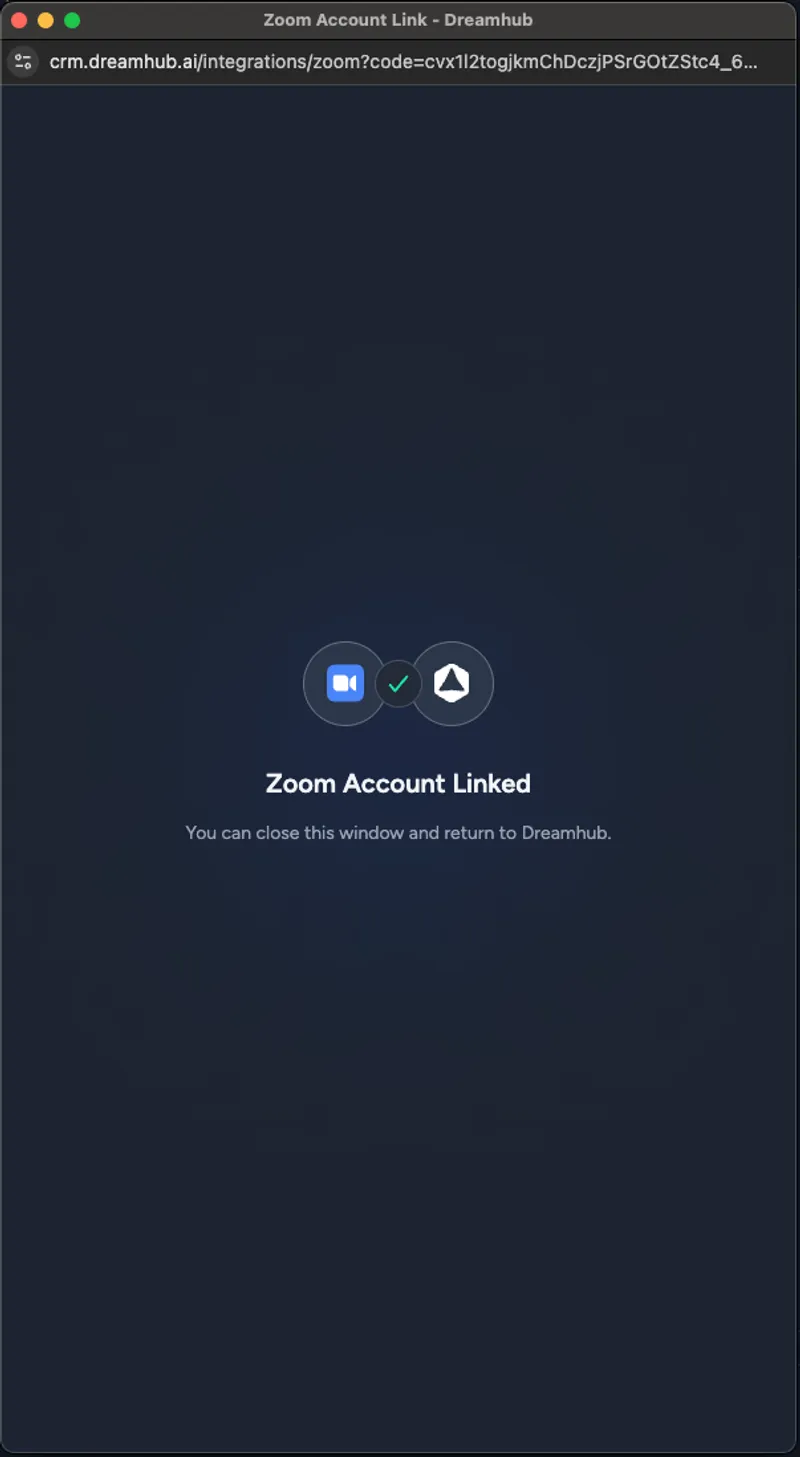
Zoom confirms the connection with Zoom Account Linked. Close that window and return to Dreamhub, where the Zoom row now shows Connected.
Troubleshooting Guide
Common Issues and Solutions:
- Authorization Failed Error
- Solution: Clear your browser cache and cookies, then retry the installation process
- Ensure pop-up blockers are disabled for zoom.us and dreamhub.ai
- Integration Not Appearing in Dreamhub
- Solution: Log out of both Zoom and Dreamhub, then repeat the registration process
- Check that your Dreamhub account has the necessary permissions for integrations
- Permission Denied Error
- Solution: Ensure you have Admin permission in Zoom
Verify your Dreamhub account role allows for integration management
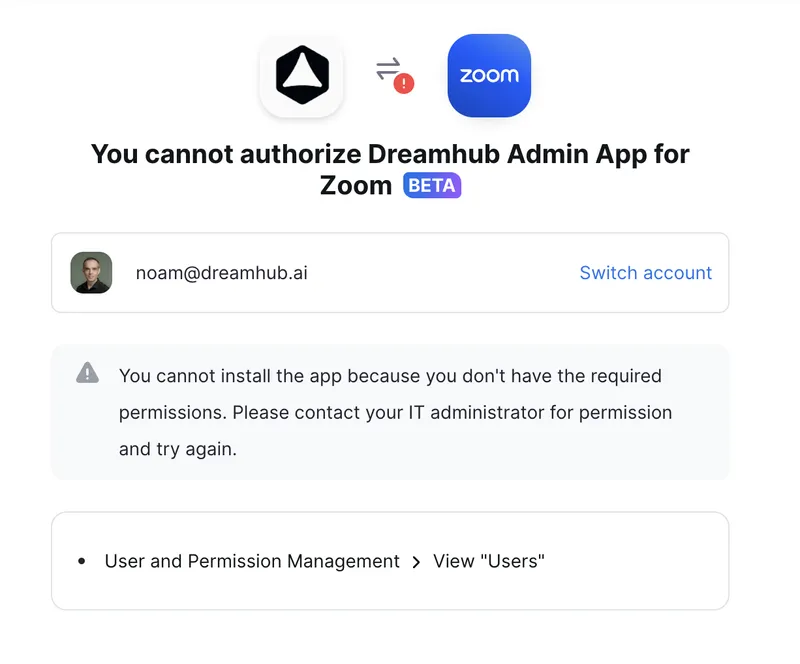
Zoom permission denied
- Meetings or Calls Not Appearing in Dreamhub
- Solution: check that the Zoom user’s email address is identical to their Dreamhub user email — Dreamhub only logs activity it can attribute to a Dreamhub user
- For Zoom Phone: confirm the user has a Zoom Phone license, and that the call has ended (calls are logged once Zoom closes the call log, normally within a few minutes)
- Recordings and transcripts arrive separately, a few minutes after the meeting or call, and only when Zoom recording and transcription are enabled
- Connection Timeout
- Solution: Check your internet connection and firewall settings
- Ensure dreamhub.ai and zoom.us are whitelisted in your network
For additional support, contact support@dreamhub.ai
2. Usage Guide
Core Features and Use Cases
Automatic Meeting Logging
Use Case:
Automatically sync your Zoom meetings to Dreamhub CRM for complete customer interaction tracking
Prerequisites:
- Zoom integration must be active
- Meeting host must have a Dreamhub user whose email matches their Zoom email
How to Use:
- Schedule or start a Zoom meeting as normal
- Dreamhub automatically captures meeting details including:
- Meeting participants and their email addresses
- Meeting duration and timestamp
- Meeting recording links and transcript
- View meeting data in the relevant contact or deal record in Dreamhub
Zoom Phone Call Logging
Use Case:
Log inbound and outbound Zoom Phone calls in Dreamhub as call activities, so phone conversations sit alongside meetings and emails on the customer record
Prerequisites:
- Zoom integration must be active
- The user on the call must have a Zoom Phone license, and their Zoom email must match their Dreamhub user email
- Zoom call recording (and transcription) enabled, if you want recordings and transcripts attached
How to Use:
- Place or receive a Zoom Phone call as normal, then end the call
- Dreamhub captures the call and logs it, including:
- Who was on the call, in which direction, and the number dialed
- Call time, duration, and outcome
- The call recording link and transcript, when call recording is on
- Open the matching person in Dreamhub and go to the Activities tab to see the call. If the number belongs to someone who is not in Dreamhub yet, Dreamhub creates the contact for you.
- When the call was recorded, an AI-written call summary is added to the call activity once the transcript is ready
Meeting Insights and Analytics
Use Case:
Track customer engagement and meeting patterns across your sales pipeline
Prerequisites:
- At least one completed Zoom meeting
- Appropriate viewing permissions in Dreamhub
How to Use:
- Following a Zoom meeting (recorded), login to Dreamhub and navigate to the Activities tab in the Person’s page who you had the meeting with.
- Select meeting record
- View the call summary, including:
- Overview
- Pain Points
- Next Steps
- Participants
- Link to the meeting recording
3. Removing the Integration
If you’ve connected Dreamhub to Zoom but no longer want to use the integration, you can easily disconnect it from your account.
- Log into Dreamhub at crm.dreamhub.ai.
- Open Connected accounts from your account menu in the top-right corner — the same place you connected Zoom.
- On the Zoom row, open the options menu (⋯) next to Connected and click Disconnect, then confirm.
- Zoom is connected once for the whole Dreamhub account, so only the admin who connected it can disconnect it. Everyone else sees the option disabled.
Implications of Deauthorization
What Happens When You Remove the Integration:
- All automatic meeting and Zoom Phone call syncing will stop immediately
- Existing meeting and call activities in Dreamhub will be retained
- Zoom meeting links created through Dreamhub will continue to work
- Meeting and call summaries will no longer be created from new Zoom activity
Data Handling and Privacy
Data Retention:
- Historical meeting and call data already synced to Dreamhub remains in your CRM
- No new data will be collected from Zoom after deauthorization
- Your existing CRM records and notes are unaffected
Data Removal:
Zoom-related data cannot be selectively removed from Dreamhub without deleting your entire Dreamhub account. Meeting and call transcripts are stored encrypted and are retained only as long as they are needed to produce and keep the summary on the activity record.
Complete data removal requires account termination as follows:
- Email privacy@dreamhub.ai with your account details
- Request "Complete Account and Data Deletion"
- All data, including Zoom meeting and call history, will be permanently deleted within 30 days of request
- This action is irreversible and will remove ALL your Dreamhub data, not just Zoom-related information
Re-enabling the Integration
You can reconnect the Zoom integration at any time by:
- Following the installation steps in Section 1
- Previous settings and preferences will need to be reconfigured
- Historical data will remain, and new syncing will resume